Have you ever run into this? You download or extract an archive containing thousands of tiny files — a codebase, a web cache, a photo library, or a document collection — on a powerful machine with a multi-gigabyte SSD, yet the progress bar just crawls along?
The bottleneck usually isn't your hardware. It's the decades-old compression formats you're still using, such as plain zip or gzip.
In 2026, if you want to save serious time in everyday file management, I strongly recommend switching to zstd (Zstandard).
1. What is zstd, and why is it so fast?
zstd (short for Zstandard) is a modern real-time compression algorithm open-sourced by Meta (Facebook). Its defining trait: it is aggressively optimized for modern hardware, with absurdly fast decompression.
Instant win on small-file extraction
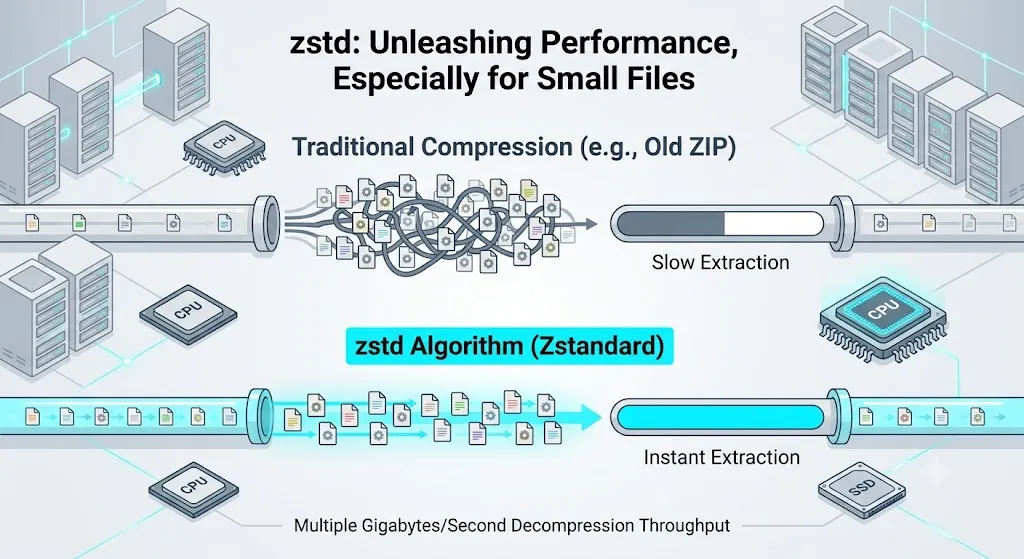
Traditional algorithms burn CPU on archives full of small, scattered files — decompression and context switching often lag behind your disk's write speed.
zstd's decompression throughput is extremely high (often multiple gigabytes per second), which effectively maxes out your drive's physical read/write ceiling. Archives that used to take minutes to unpack often open in seconds. The difference is immediately noticeable.
A perfect balance of ratio and speed
Worried that "fast decompression must mean poor compression"? Not at all.
zstd offers fine-grained compression levels (from 1 to 22). At the default levels you'd use day to day, its compression ratio matches or even beats traditional zip / rar — while decompressing several times faster.
2. How everyday Windows users get started
zstd itself is powerful, but you need a convenient archiver to actually use it. Here are the two easiest ways to enable it:
Option 1 (Recommended): NanaZip — the go-to on Windows 11
If you're on Windows 11 or 10, NanaZip is the best open-source archiver around. It's a deeply customized 7-Zip derivative with first-class modern Windows right-click menu integration.
- Pros: native support for zstd out of the box — no extra plugins required.
- How to use it:
- Download and install NanaZip.
- Right-click a file, choose
NanaZip→Add to archive. - In the format / algorithm list, simply select zstd.
Option 2: The classic 7-Zip + zstd plugin (or the 7-Zip-zstd fork)
If you prefer the classic 7-Zip interface, here's how:
- Official fork: grab 7-Zip Zstandard (7-Zip-zstd), an open-source build with zstd baked in. Install it over standard 7-Zip and zstd will appear in the compression options.
- Plugin route: on stock 7-Zip, download the
Codecs/zstdplugin files and drop them into 7-Zip'sCodecsfolder to unlock the format.
3. Busting the myth: "fast extraction = insecure"?
Some people worry when they first meet zstd: "If it extracts that fast, does it mean weaker encryption that's easy to crack?"
That's a classic misconception.
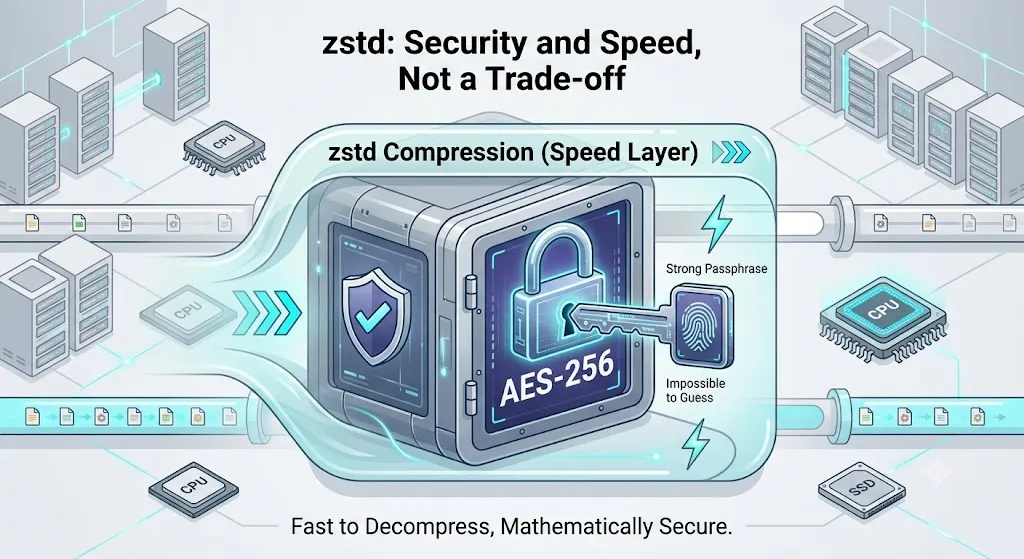
- Speed is about how efficiently the algorithm shrinks data and restores it.
- Security depends on the encryption algorithm used by the archive (e.g. the modern AES-256 standard) and your password strength.
With NanaZip or 7-Zip, you can still enable AES-256 encryption with a password when creating zstd archives. As long as you use a strong, long passphrase (for example, a phrase made of multiple words), brute-forcing it remains astronomically difficult on today's hardware.
zstd lets you enjoy instant extraction without sacrificing security in the slightest.
4. Summary: one small habit change, hours saved every year
Progress often hides in unglamorous details. Switching from ZIP to zstd requires no new hardware — just a zstd-capable tool like NanaZip.
In your daily work:
- Archiving small files: prefer the zstd format.
- Secure transfer: add a long passphrase + AES-256 encryption.
Save your time for things that actually matter. Stop letting a progress bar waste your life — give zstd a try starting today!
Filed under IT efficiency & productivity tools.