Building software is rarely a straight line. When I first envisioned OpsKit, my goal was straightforward: create a lightweight, portable, and pure system maintenance utility for Windows that doesn't drag along 500MB of bloated installers or intrusive background services. I wanted something that felt sharp, transparent, and completely free of ads.
Transitioning OpsKit from a rough set of scripts into a polished, professional utility, however, turned out to be a masterclass in edge cases, UI architecture, and the hidden complexities of human-centric design.
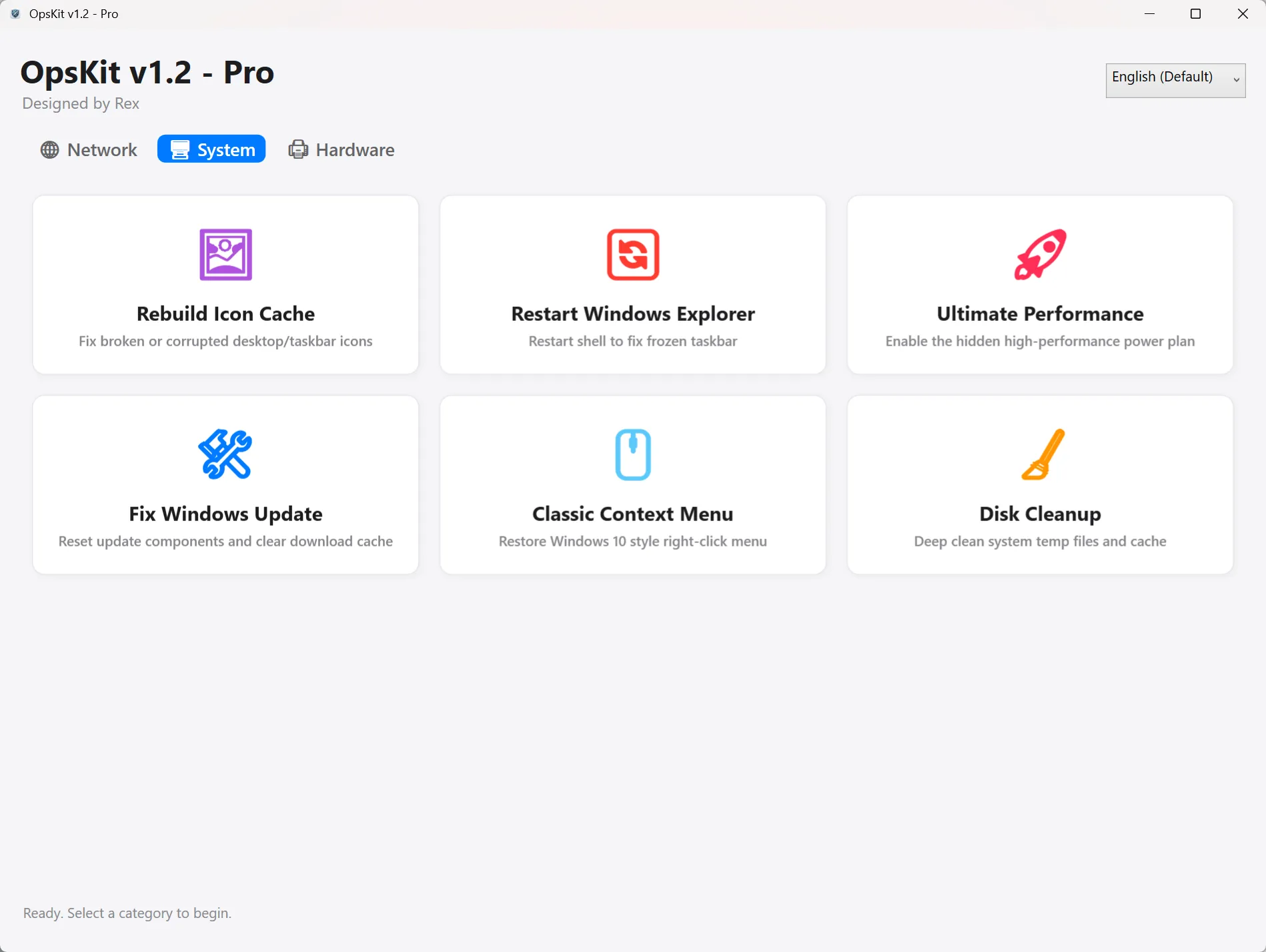 OpsKit v1.2 — a stateless, single-file Windows maintenance toolkit.
The Clunky Days: Command Windows and Visual Fear
When OpsKit started, it relied heavily on raw execution. If you ran a network reset or cleared the Windows Update cache, command-line popups (CMD/PowerShell) would briefly flash on the screen.
To a developer, a flashing terminal window is just standard output. To an everyday user, it looks like a malware infection.
Worse yet, executing disruptive tasks — like restarting explorer.exe to fix frozen taskbars or refreshing the icon cache — would cause the entire desktop to flicker momentarily. Without prior warning, users naturally panicked, thinking the app had broken their system.
The Lesson
Functional code isn't enough; user safety and peace of mind matter just as much.
The Fix
We completely overhauled the interaction model. We introduced a custom, top-most "Apple-style" UI alert system. Long-running tasks like Disk Cleanup were wrapped with visual "Start → Process → Finish" feedback loops, while background tasks like Windows Update fixes were made entirely silent via status bar progress updates. Before any operation that causes visual disruption (like shell restarts), explicit warning dialogs with confirmation steps were implemented to eliminate accidental clicks and user panic.
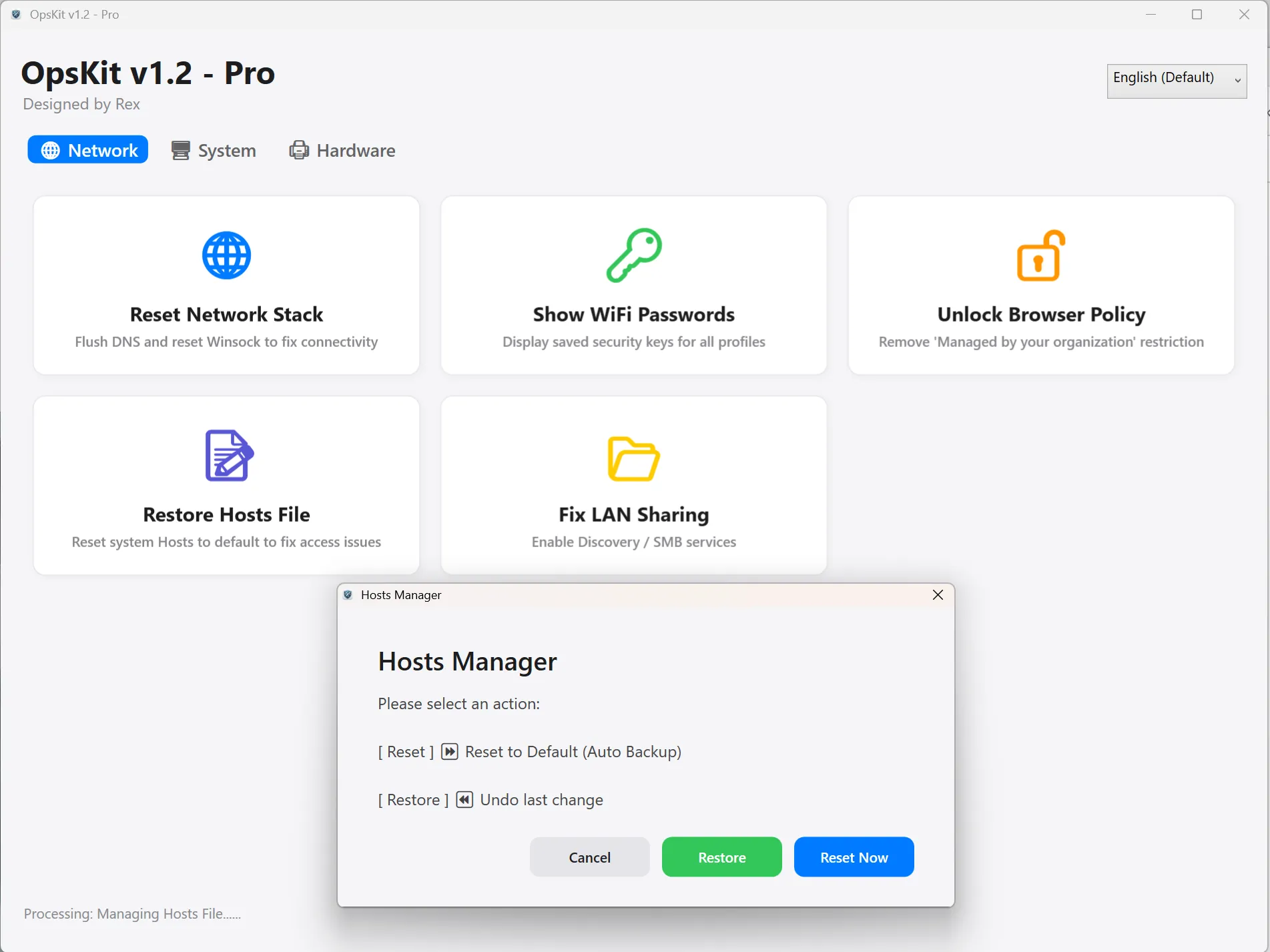 System & Optimization — one-click fixes with clear visual feedback.
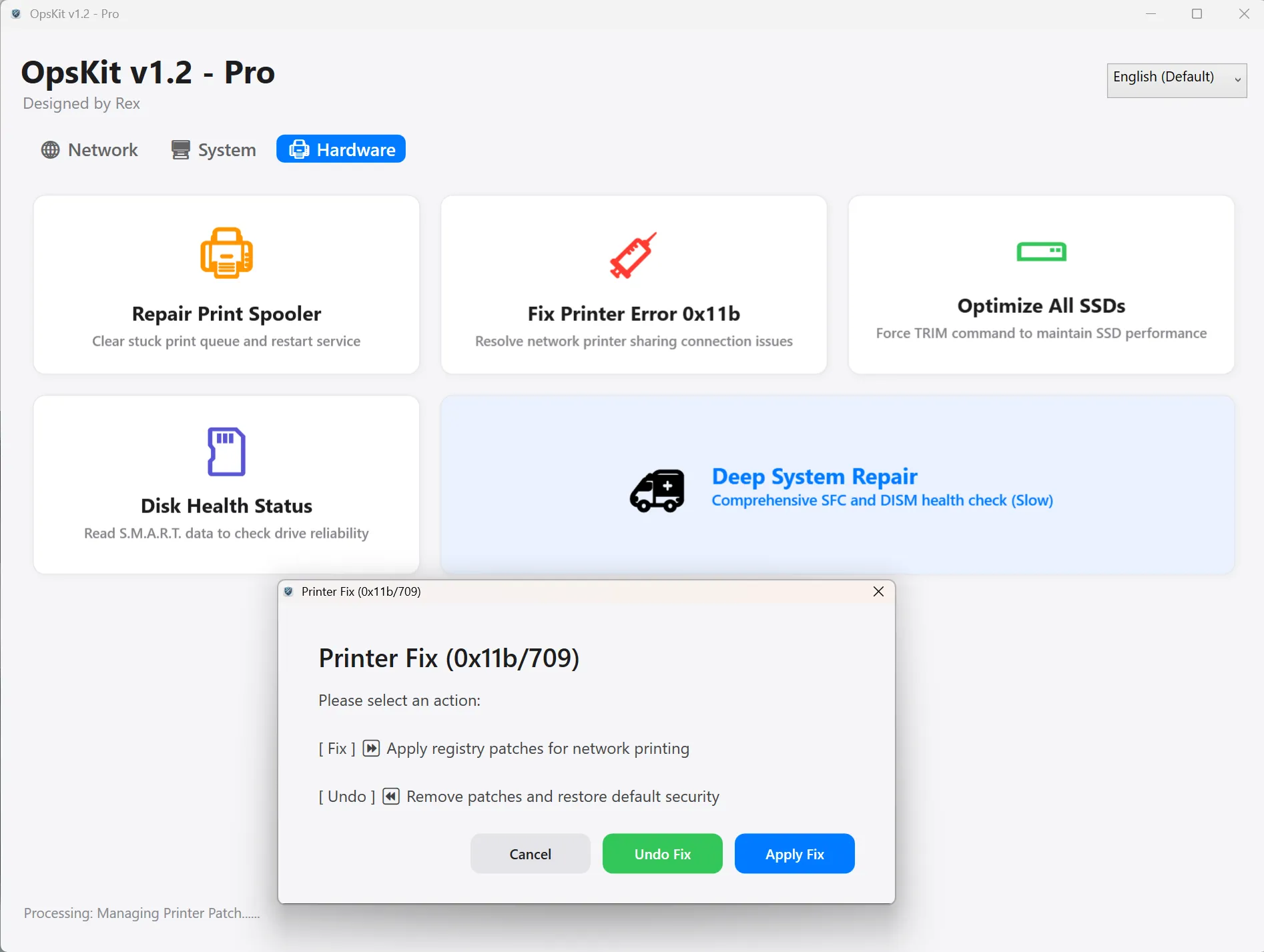 Network & Connectivity — silent background fixes, no more flashing CMD windows.
The Localization Nightmare: Matching 6 Languages Byte-by-Byte
If you've ever built a multi-language app, you know that dynamic UI translation is a minefield. For v1.2, I decided to support six major languages: English, Simplified Chinese, Traditional Chinese, French, German, Japanese, and Spanish.
Sounds simple enough — just create some .json translation dictionaries, right?
Not quite. Here is where the real headaches began:
-
The UI Overflow Bug: Languages expand and contract at completely different rates. A crisp English string like
"Disk Cleanup"becomes"Datenträgerbereinigung"in German. In fixed-height UI elements, longer words either clipped off the screen or broke the card layouts entirely. We had to refactor dialogs and cards to support dynamic, auto-height text wrapping without breaking grid alignments. - Technical Terminology Nuances: You can't just throw IT terms into Google Translate. "File Explorer" in French is "Explorateur de fichiers", while "Ultimate Performance" mode in German requires precise phrasing like "Ultimative Leistung". Japanese users expect proper technical katakana conventions (e.g., "エクスプローラー" for Explorer). Every single key in our dictionary had to be painstakingly aligned with native Windows OS nomenclature.
-
The Stateful Button Logic Bug: Early in localization testing, dynamic dialogs started returning indexed string arrays (like
0, Yes) instead of clean string keys, causing conditional logic checks to silently fail depending on which language file was loaded. Tracking down these UI state bugs required a full audit of how data bindings were parsed across language swaps.
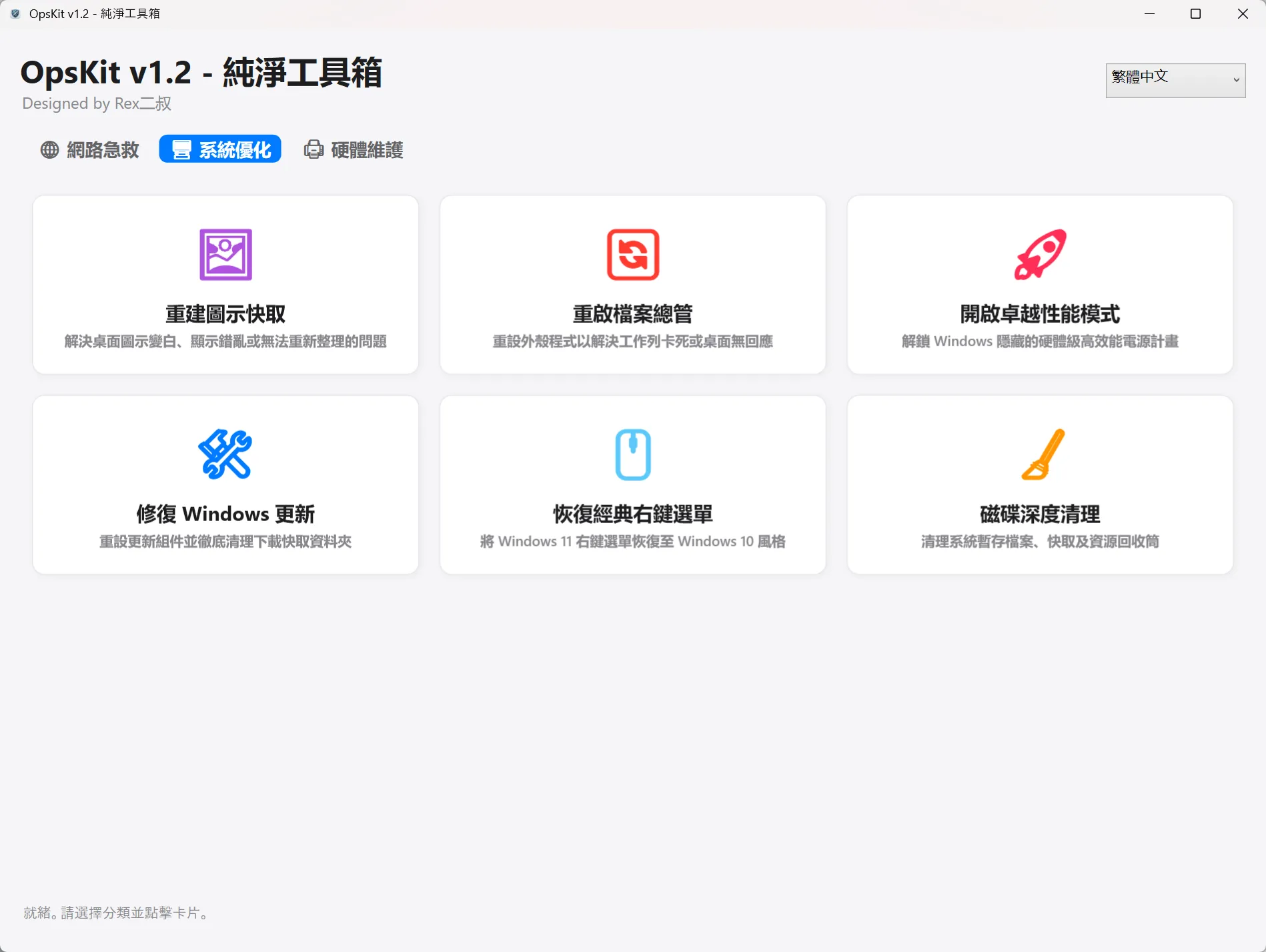 The Intelligent Language Engine — auto-detects the system UI language on launch.
Overcoming the False Positive Wall
Another major obstacle every system tool author faces is heuristic detection.
Because OpsKit directly modifies Windows registry keys, resets network stacks, and manipulates system services — and is packaged as a standalone executable — antivirus engines on VirusTotal frequently flag it as a generic Trojan (often tagged as Trojan.Application.Lazy due to common script wrappers).
Without paying hundreds of dollars annually for EV Code Signing Certificates, raw binaries are naturally treated with suspicion by Windows Defender and SmartScreen.
Our answer to this was absolute transparency. By keeping the codebase 100% open source on GitHub and offering raw .ps1 execution alongside the packaged version, users can verify every single line of code themselves. Openness remains the ultimate antidote to suspicion.
Functional code isn't enough; user safety and peace of mind matter just as much.
Looking Ahead: The Next Phase
OpsKit v1.2 brought us to a point of maturity — featuring soft dark mode themes, bulletproof fallback logic, and a refined user experience. But the journey doesn't stop here.
As system architectures evolve, moving toward Native AOT compilation and integrating deeper system diagnostics — such as specialized compatibility fixes for legacy games — will be the next frontier.
Building OpsKit has been a constant reminder that great software isn't just about writing code that works. It's about respecting the user's attention, protecting their system, and polishing every single detail until the interface feels effortless.
Filed under engineering diary & developer tools.